Unity's Windows
(A) The Toolbar = bara de sus
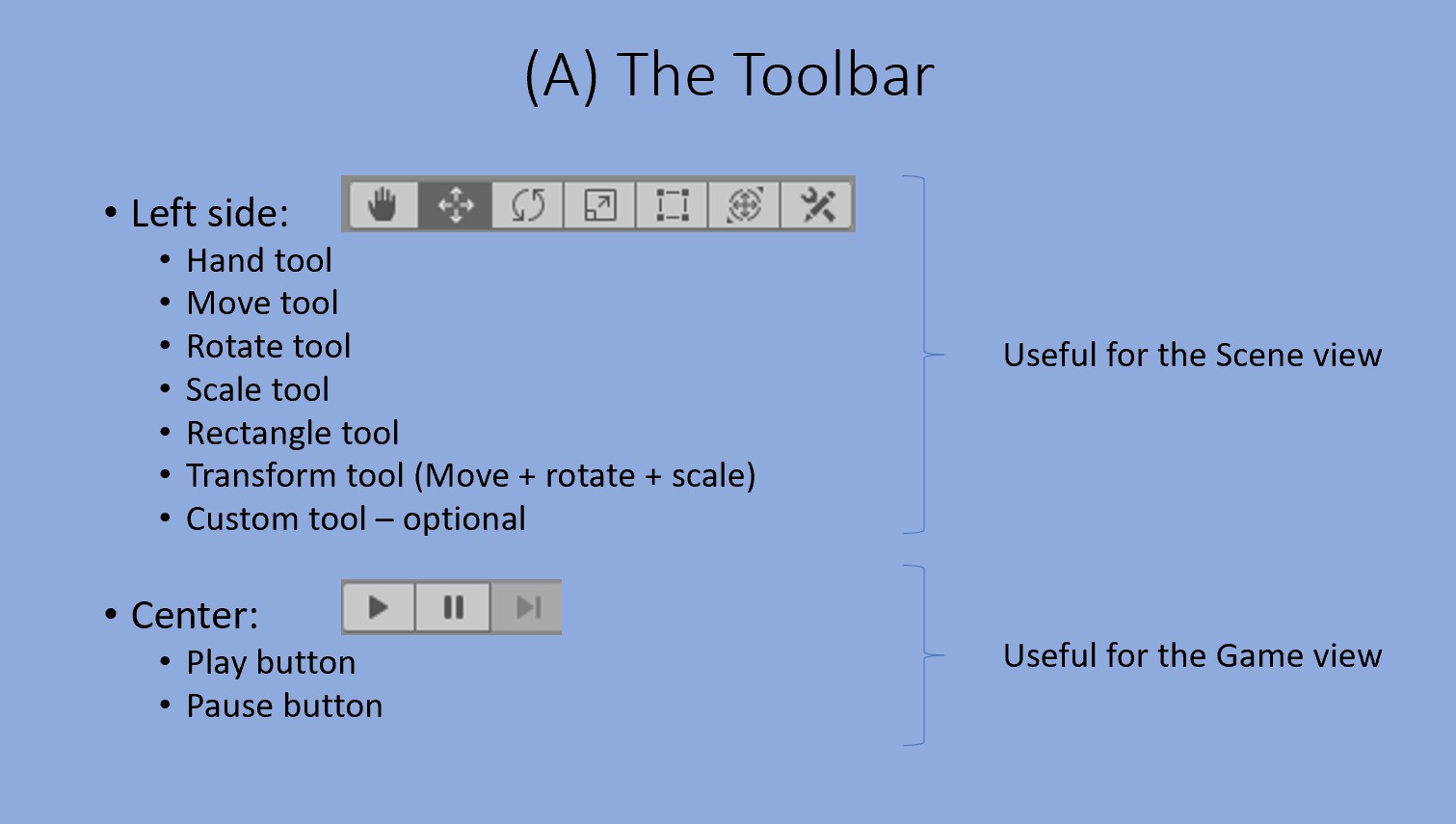
Play - starts the game simulation.
(B) The Hierarchy window = ierarhia - in stanga
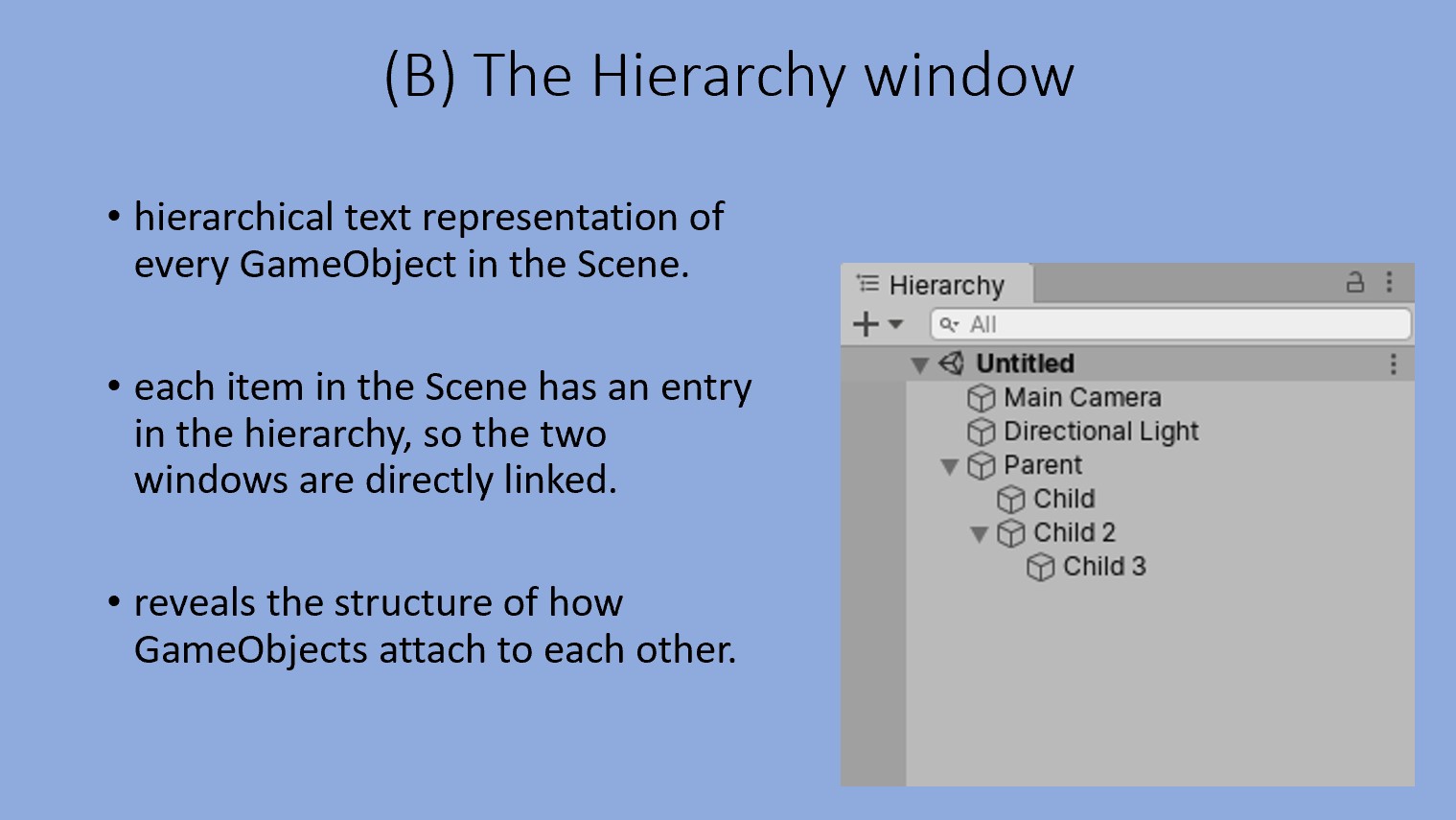
The Hierarchy and the Scene are synchronised: if we add an object in the Scene, Unity will automatically create a list entry for it in the Hierarchy.
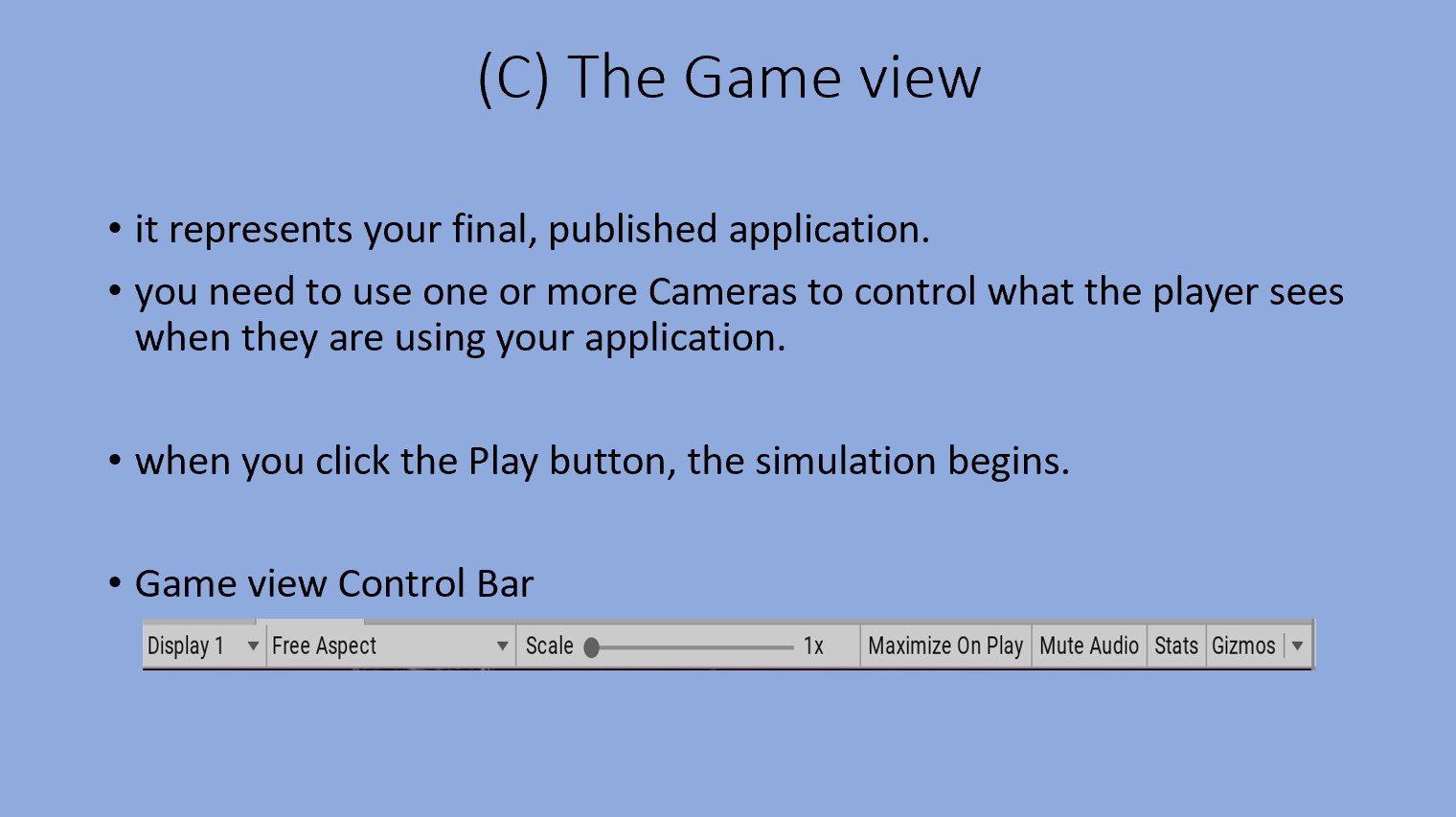
(C) The Game view - pe centru
(D) The Scene view - pe centru
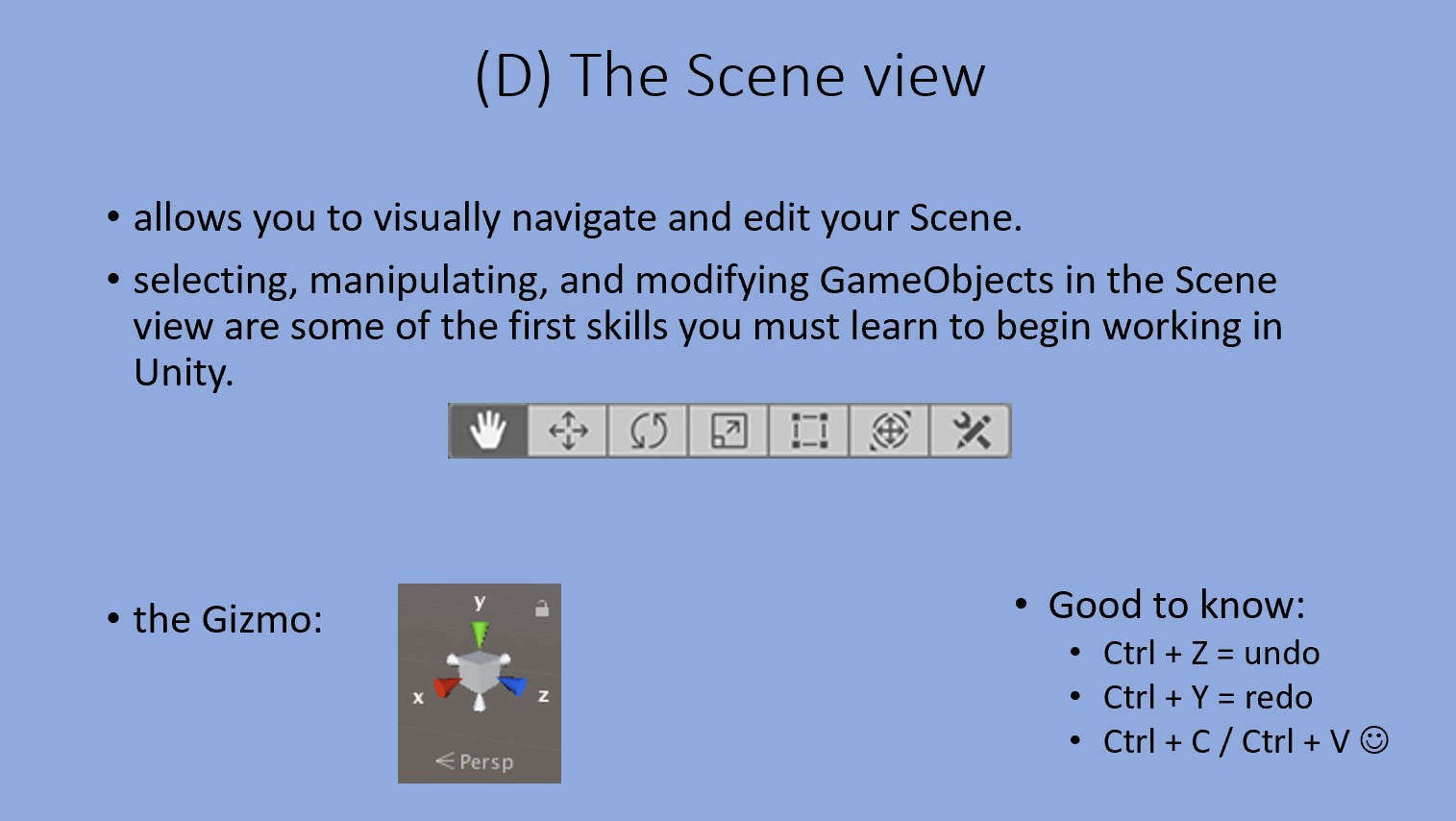
The Scene Gizmo appears in the upper-right corner of the Scene view. This displays the Scene view Camera’s current orientation, and allows you to change the viewing angle and projection mode.
The Scene Gizmo has a conical arm on each side of the cube. The arms at the forefront are labelled X, Y, and Z. Click on any of the conical axis arms to snap the Scene view Camera to the axis it represents (for example: top view, left view, and front view). You can also right-click the cube to see a menu with a list of viewing angles. To return to the default viewing angle, right-click the Scene Gizmo and select Free.
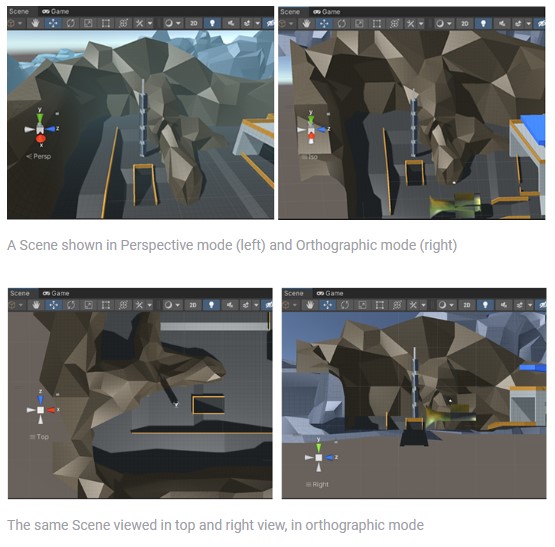
You can also toggle Perspective on and off. This changes the projection mode of the Scene view between Perspective and Orthographic (sometimes called “isometric”). To do this, click the cube in the center of the Scene Gizmo, or the text below it. The Orthographic view has no perspective, and is useful in combination with clicking one of the conical axis arms to get a front, top or side elevation.
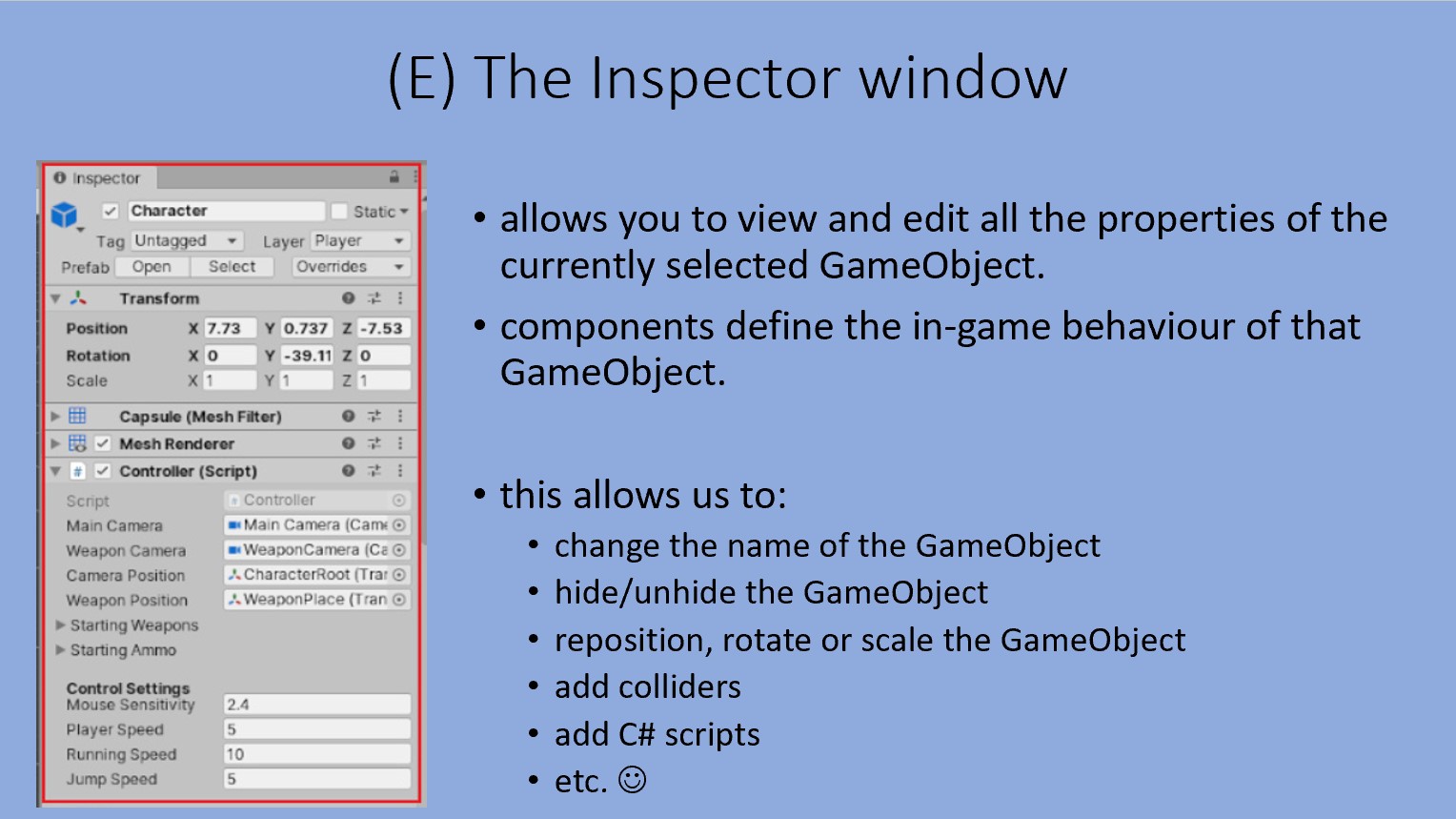
(E) The Inspector window - in dreapta
(F) The Project window - jos