Install & Setup
In order to most effectively download, install, and manage the versions of Unity on our computer, we will use something called Unity Hub.
Go to https://unity3d.com/get-unity/download and then click to Download Unity Hub.
From your Downloads folder, double-click on the Unity Hub Setup file to begin the installation.
Agree to Unity Terms of Service and follow the instructions to install Unity Hub.
Open Unity Hub.
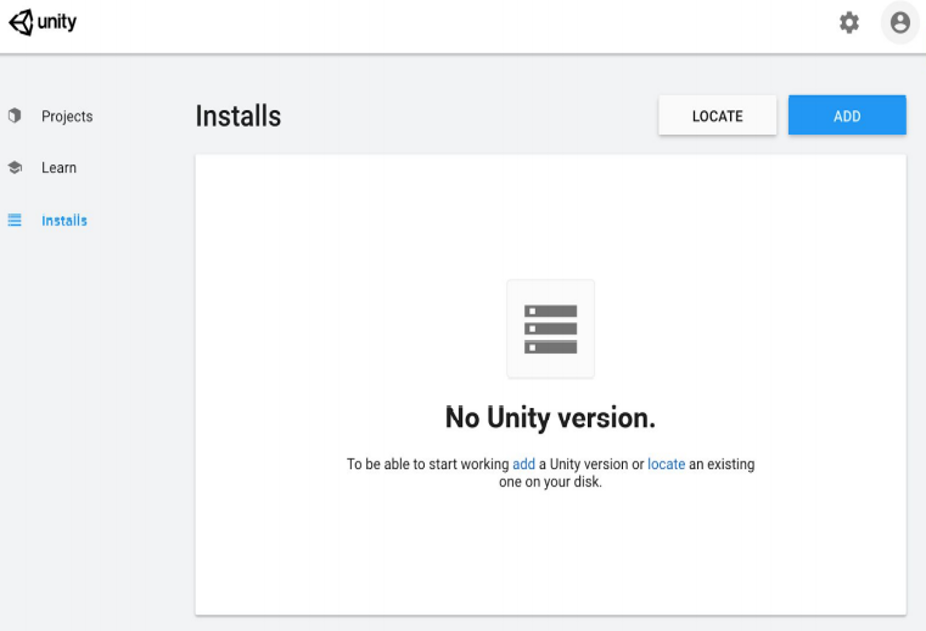
Now that Unity Hub is set up, we need to actually install a new version of Unity and our code editor, Visual Studio.
In the Installs tab click to Add a new Unity Version.
Choose the desired version. We will use 2021.3.27f.
Choose to also install Visual Studio for now (not VS Code).
Accept any necessary terms and conditions and begin installation.
You can continue onto next step of creating a Unity ID while it is installing.
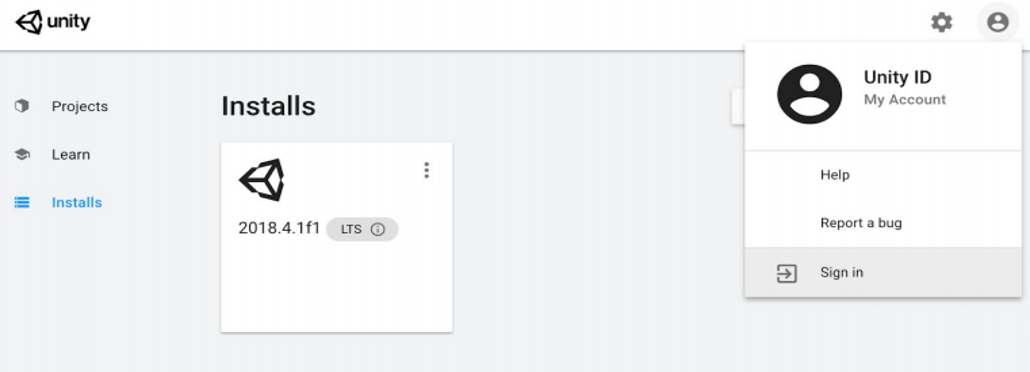
In order to access a lot of important Unity services, including the Unity Asset Store, we need to be signed in with a Unity ID.
From the Account menu in Unity Hub, click to Sign in and follow the instructions.
If you already have an account, fill in your credentials.